
Add-ons/Integrations
Google Analytics 4 (GA4) Setup
This page explains in detail, step by step, how to set up Google Analytics 4 (GA4) on your Faprika E-Commerce Infrastructure. When the training is complete, you can start measuring your website's performance and improving your business strategies.
Google Analytics 4 (GA4) has now replaced its earlier versions and is a web analytics tool that offers more advanced features and insights. For e-commerce owners, this tool is critically important for understanding visitor interactions, optimizing marketing strategies and measuring overall website performance. At Faprika, we have prepared a step-by-step guide on how to set up and use GA4 effectively. Moreover, we proudly note that Faprika provides all the events offered by Google and is the only company in Türkiye offering the best service with all features in this area. This guide explains step by step how to use GA4 effectively.
Google Analytics 4 (GA4) lets you collect, analyze and report detailed visitor data for web and mobile platforms. Moreover, this service is provided free of charge by Google. Thanks to Faprika's unique integration, you can use GA4 to monitor your website's performance in detail, optimize your marketing strategies quickly and effectively, and thus build a more efficient connection with your target audience.
The core functions of Google Analytics are as follows:
Visitor Tracking: Google Analytics tracks in detail the demographics of visitors to your site, their sources and the pages they interact with. This data gives you a comprehensive understanding of your site's user profile, helps identify popular pages and lets you build content strategies around users' interests.
Measuring Performance Metrics: Google Analytics measures in detail a range of critical performance indicators, from your site's traffic to conversion rates. This comprehensive data set allows you to evaluate your site's overall performance, identify optimization needs and build the strategies required to reach your target audience effectively.
Detailed Reporting: Google Analytics generates detailed and comprehensive reports on your site's performance. This way, you can analyze your site's current state, identify possible trends and respond more effectively to the needs of your target audience.
Google Analytics Setup: Google Analytics is of great importance for measuring and analyzing the performance of your e-commerce site.
You can get started by following these steps: First, go to the Google Analytics website and click the 'Start measuring' option on the home page.
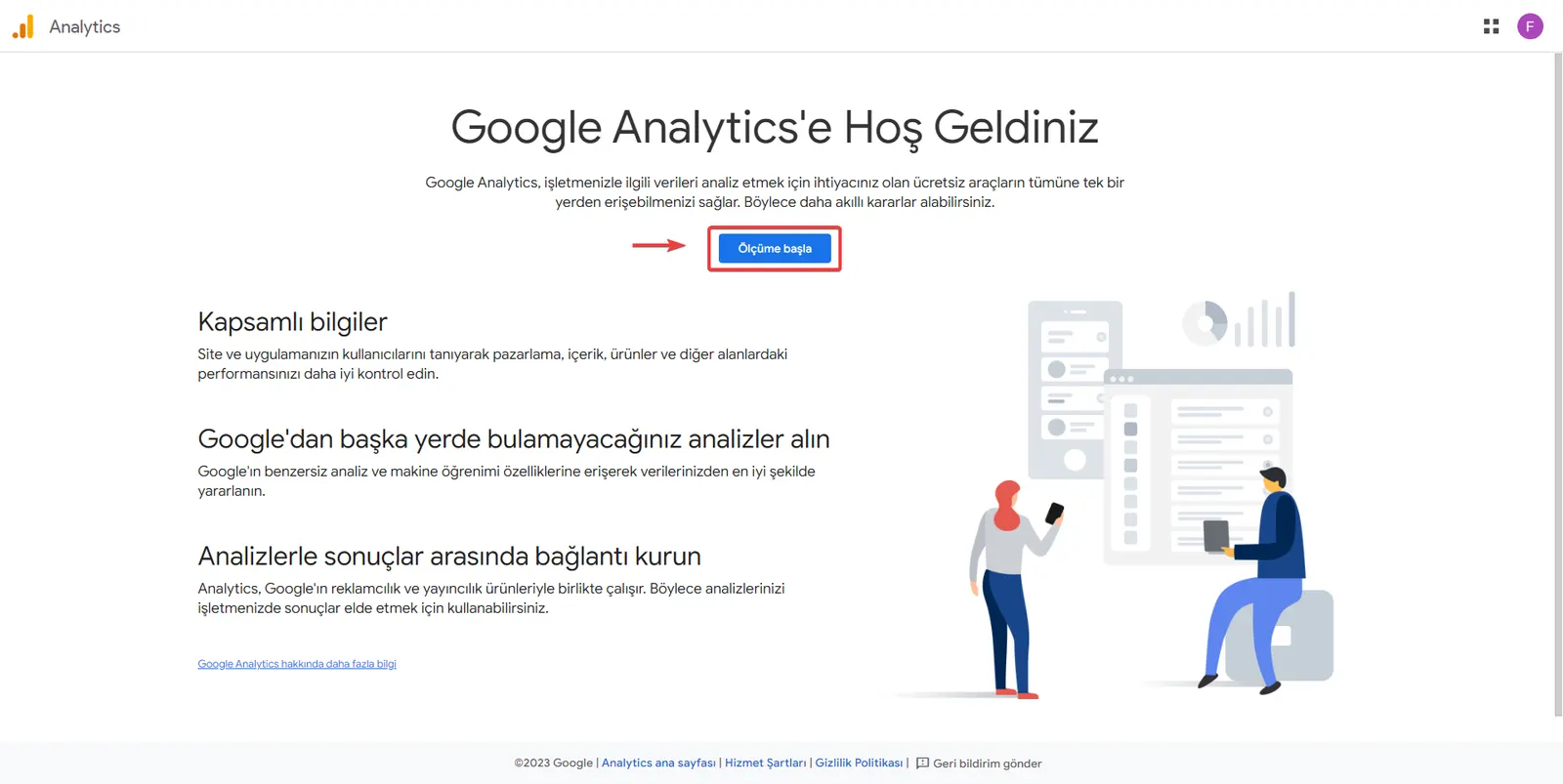
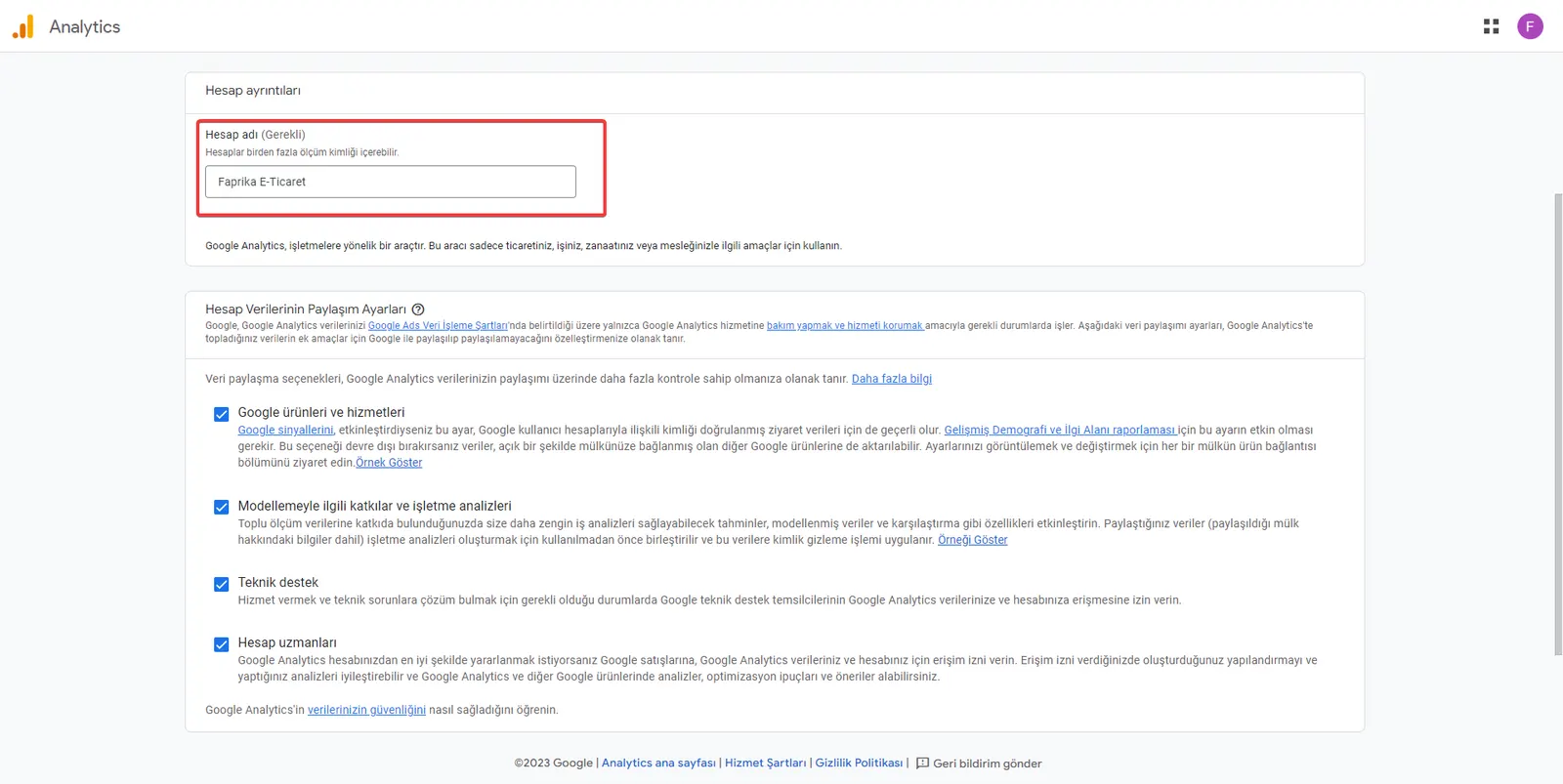
In the first step of the setup, you will reach the 'Account Details' section. Fill in the 'Account Name' field here. Then select the options you want under 'Account Data Sharing Settings' and click the 'Next' button to move on to the next stage.
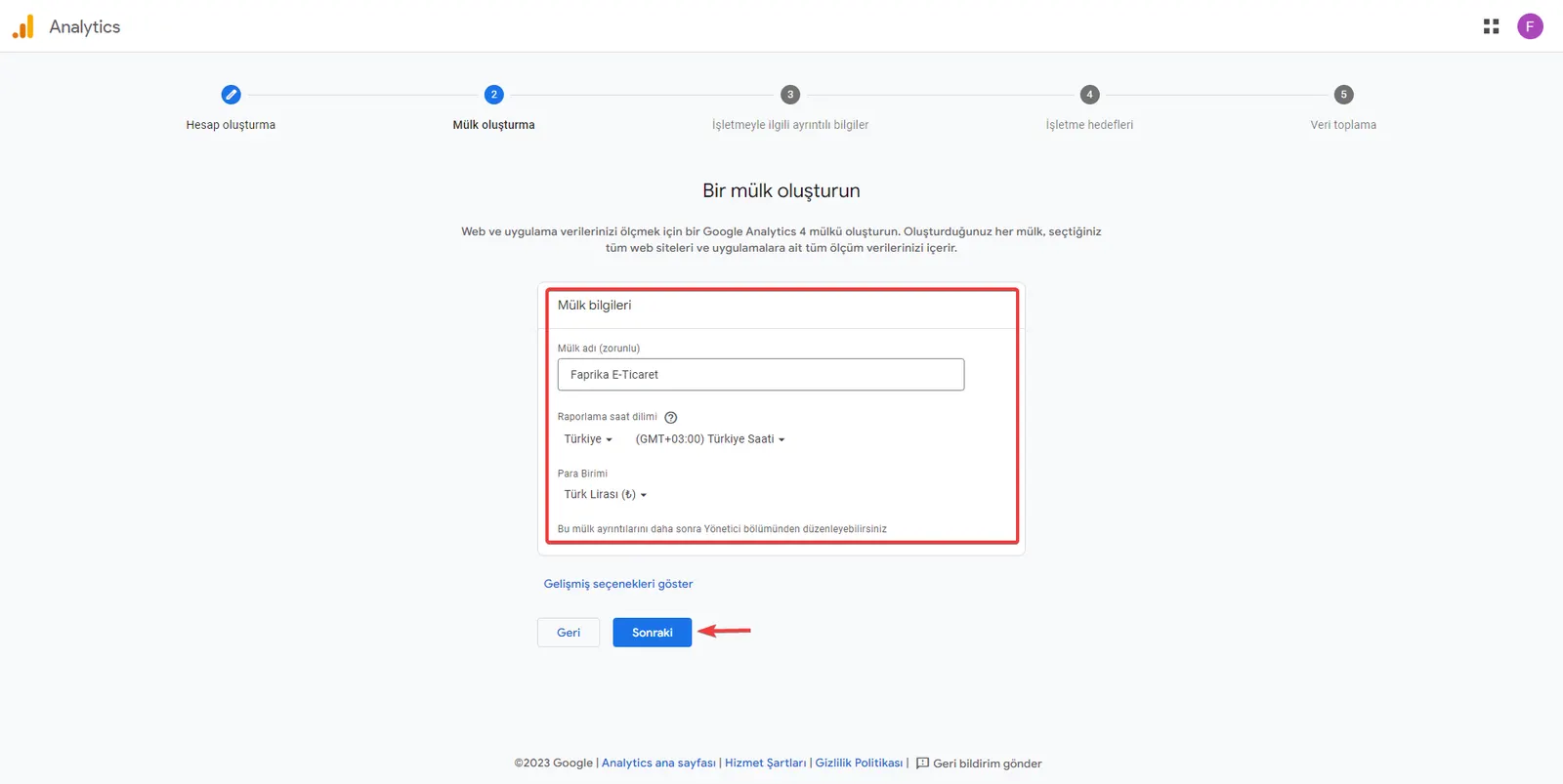
The next step in Google Analytics is the 'Create Property' option. Enter your property details completely and click the 'Next' button to move on to the next stage of the setup.
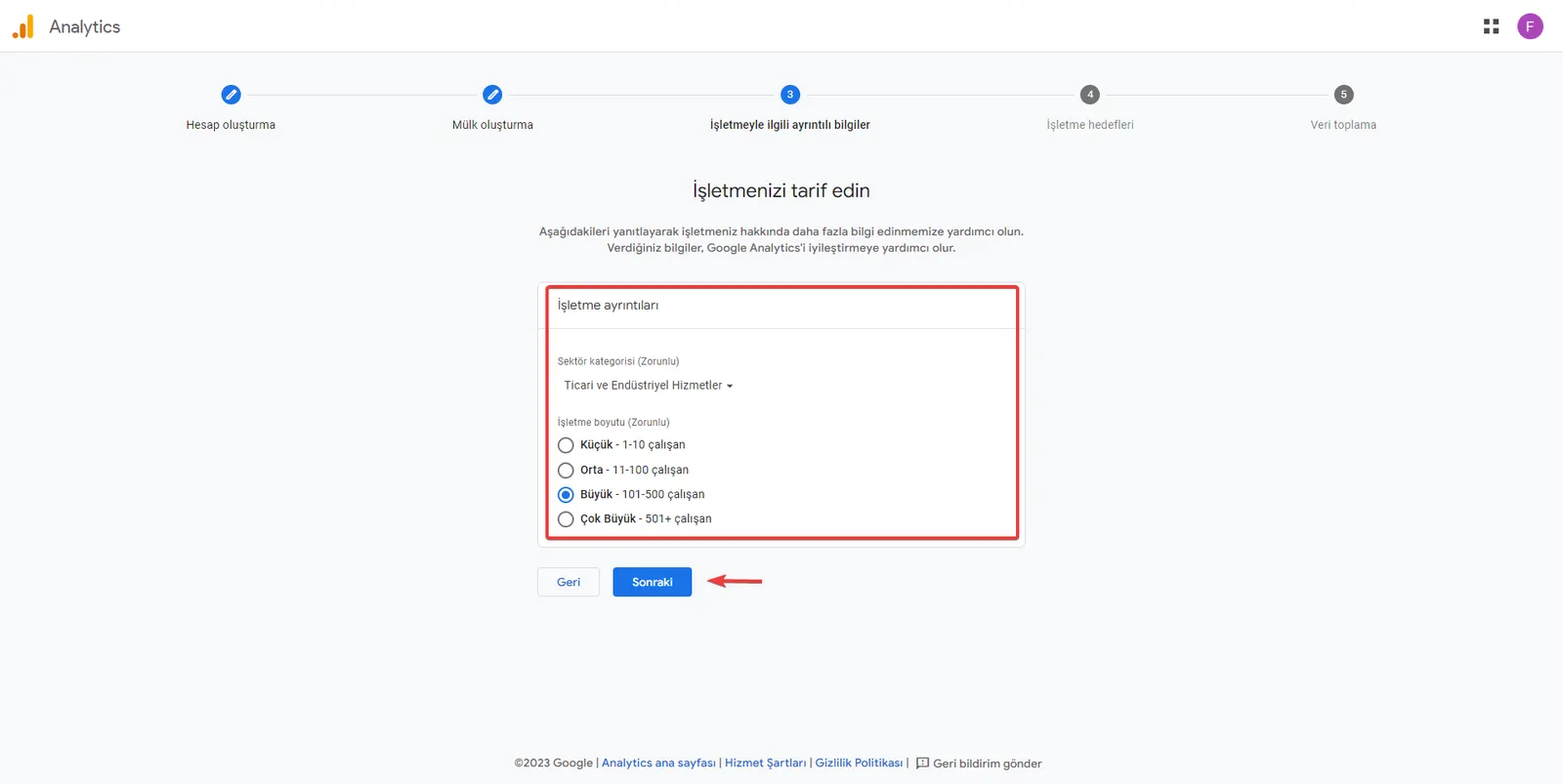
For the industry selection, choose the sector information that best describes your business. This step is important so that Google Analytics can provide more specific and relevant data for you. After marking the relevant fields, click the 'Next' button to continue the setup.
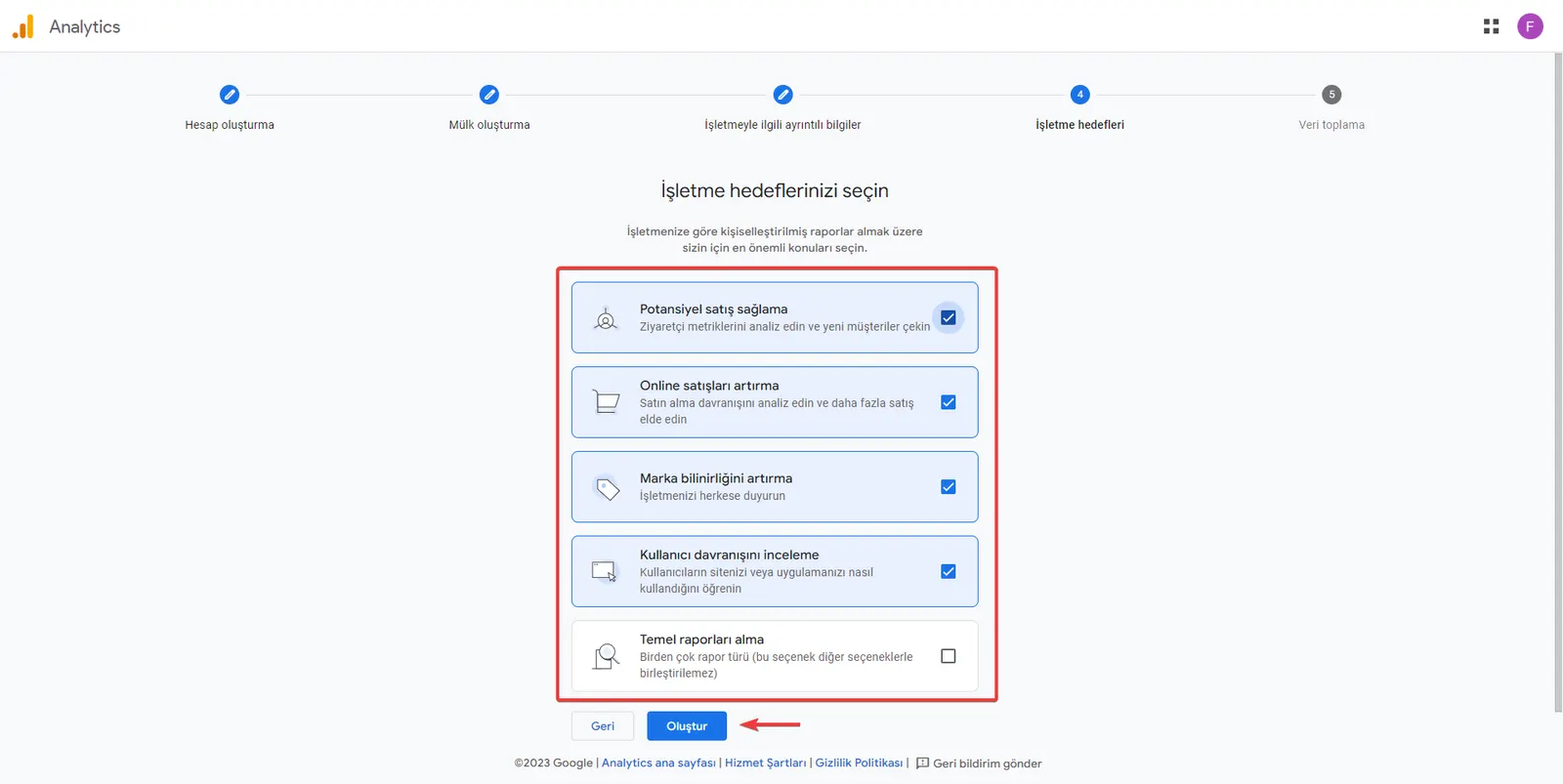
In line with the business goals you set, Google Analytics enables more focused data collection for you. Enter your goals and click the 'Create' button to continue the setup.
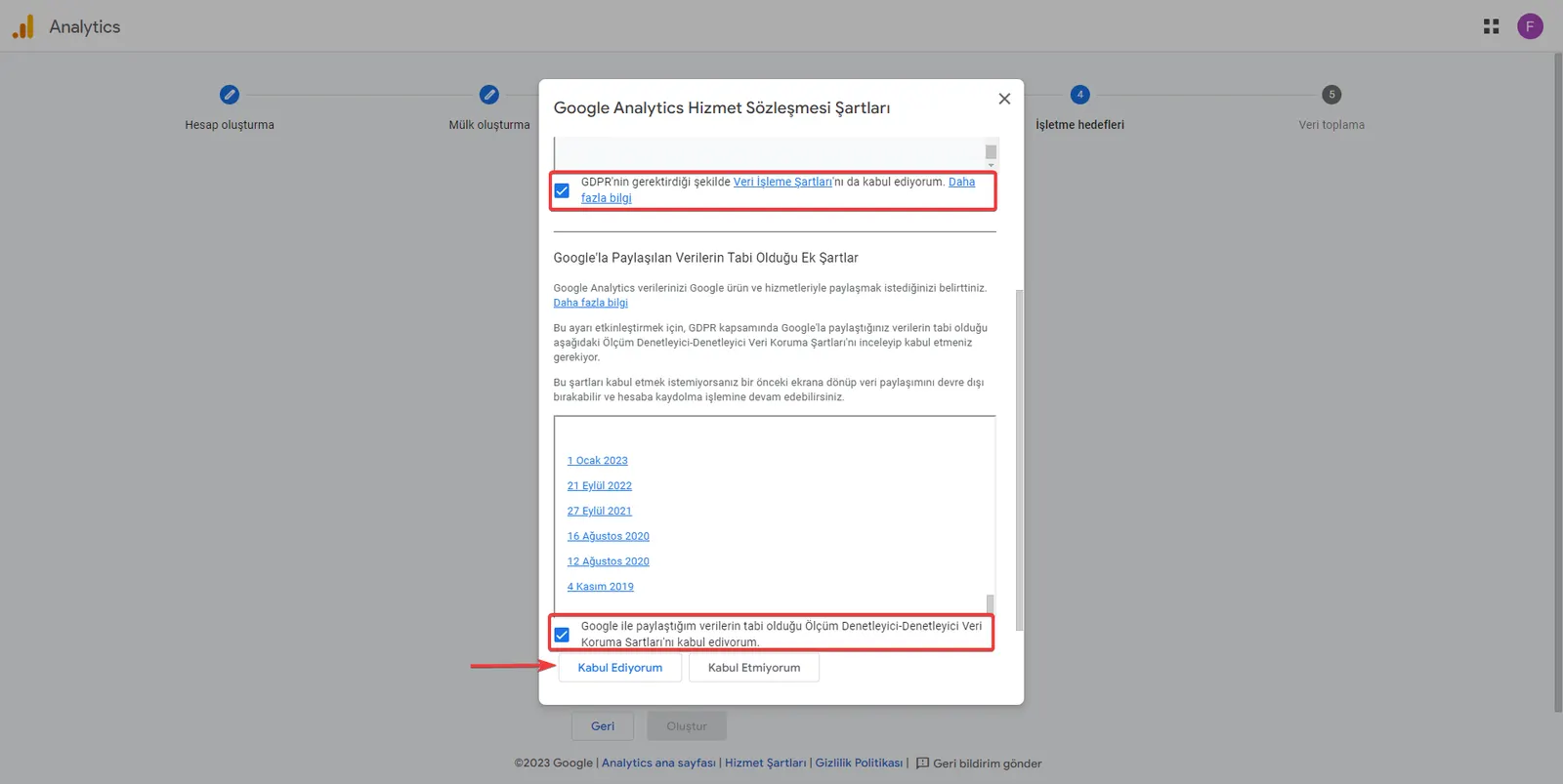
Carefully read the details of the 'Google Analytics Terms of Service' that appear on the screen. If you accept the terms, tick the relevant boxes and click the 'I Accept' button to complete the setup.
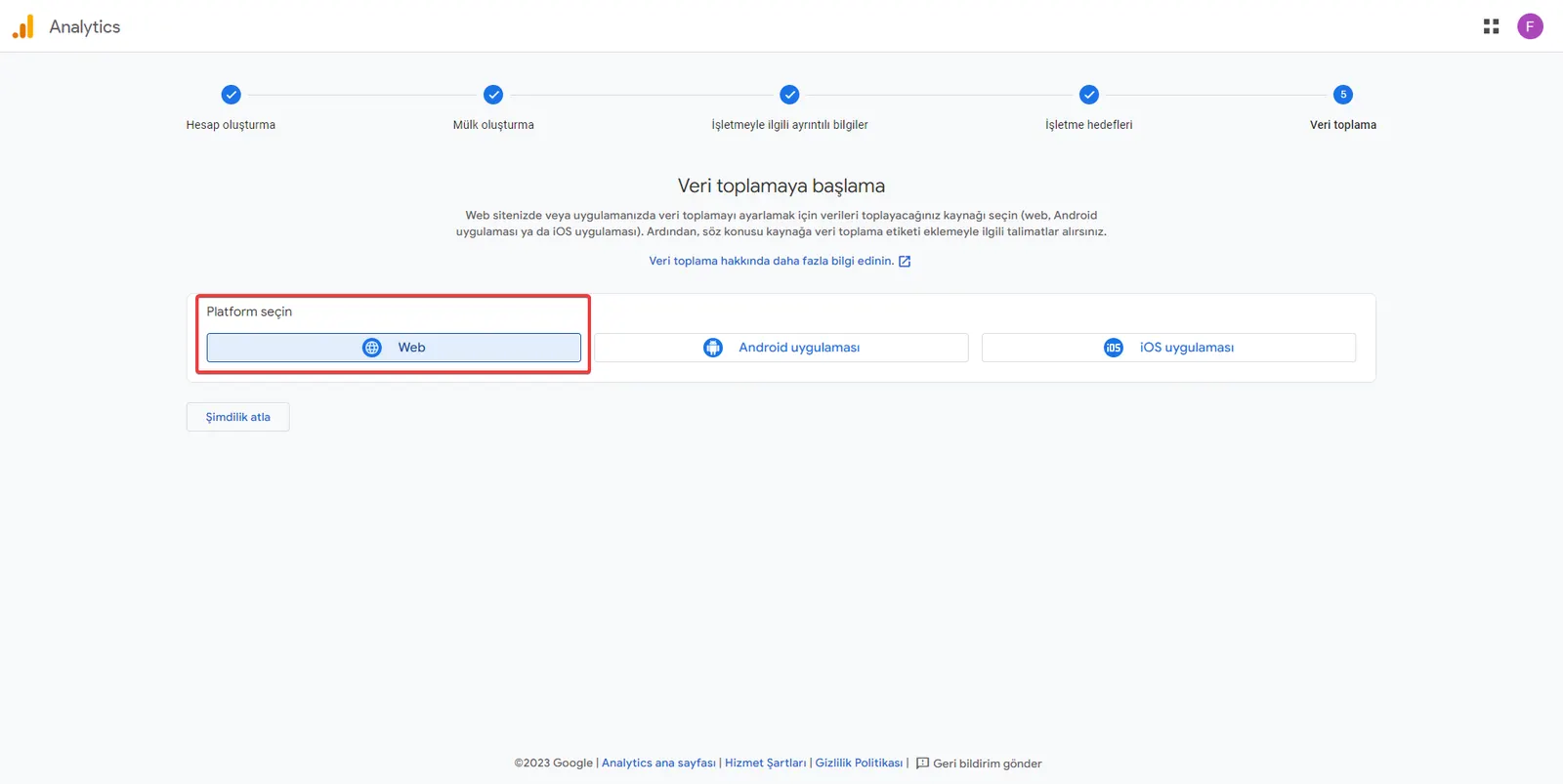
To activate data collection, select the 'Web' category among the 'Platform' options.
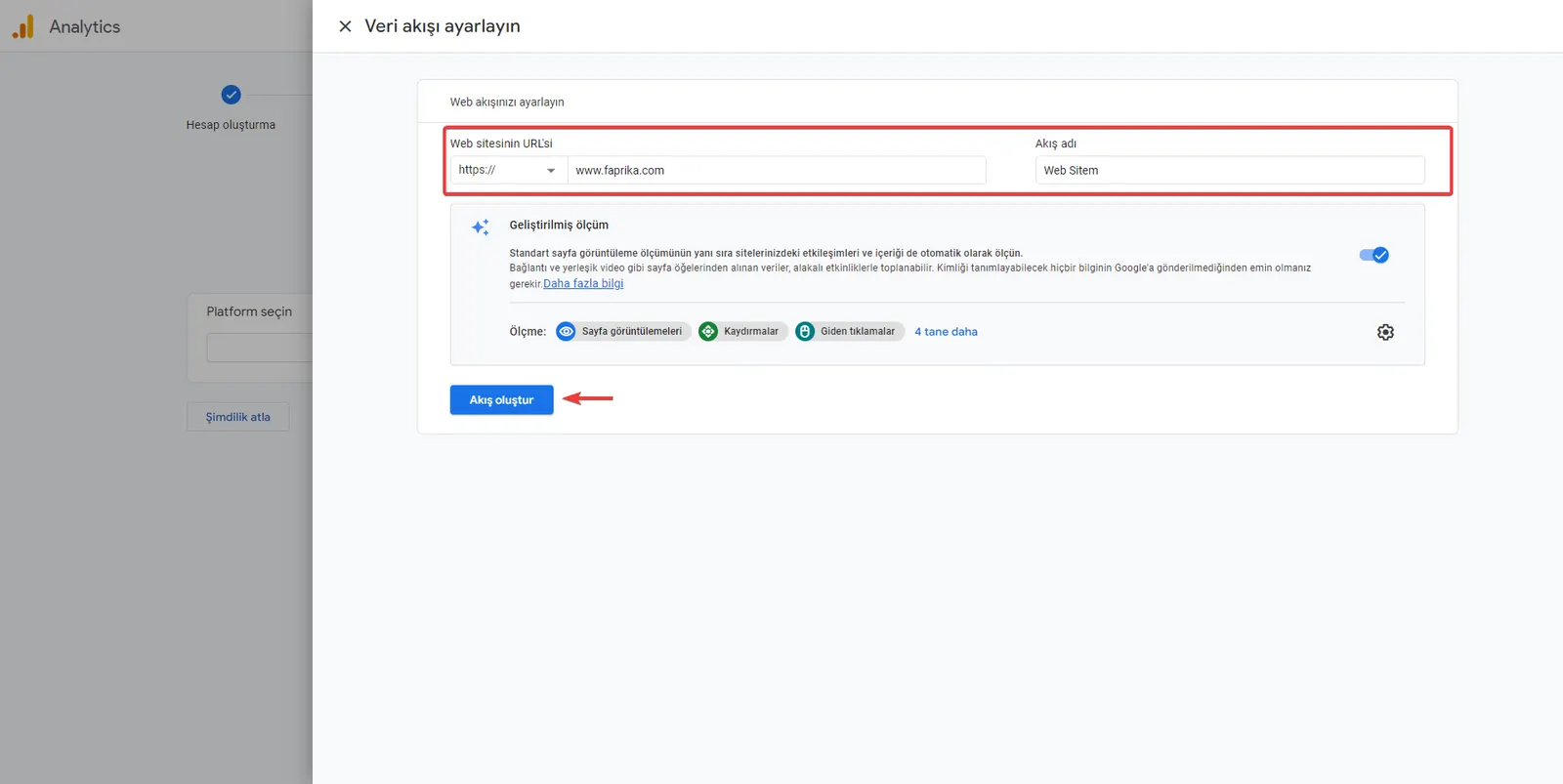
On the data stream setup screen, fill in the required fields such as 'Website URL' and 'Stream Name'. After entering your information, click the 'Create Stream' button to finish.
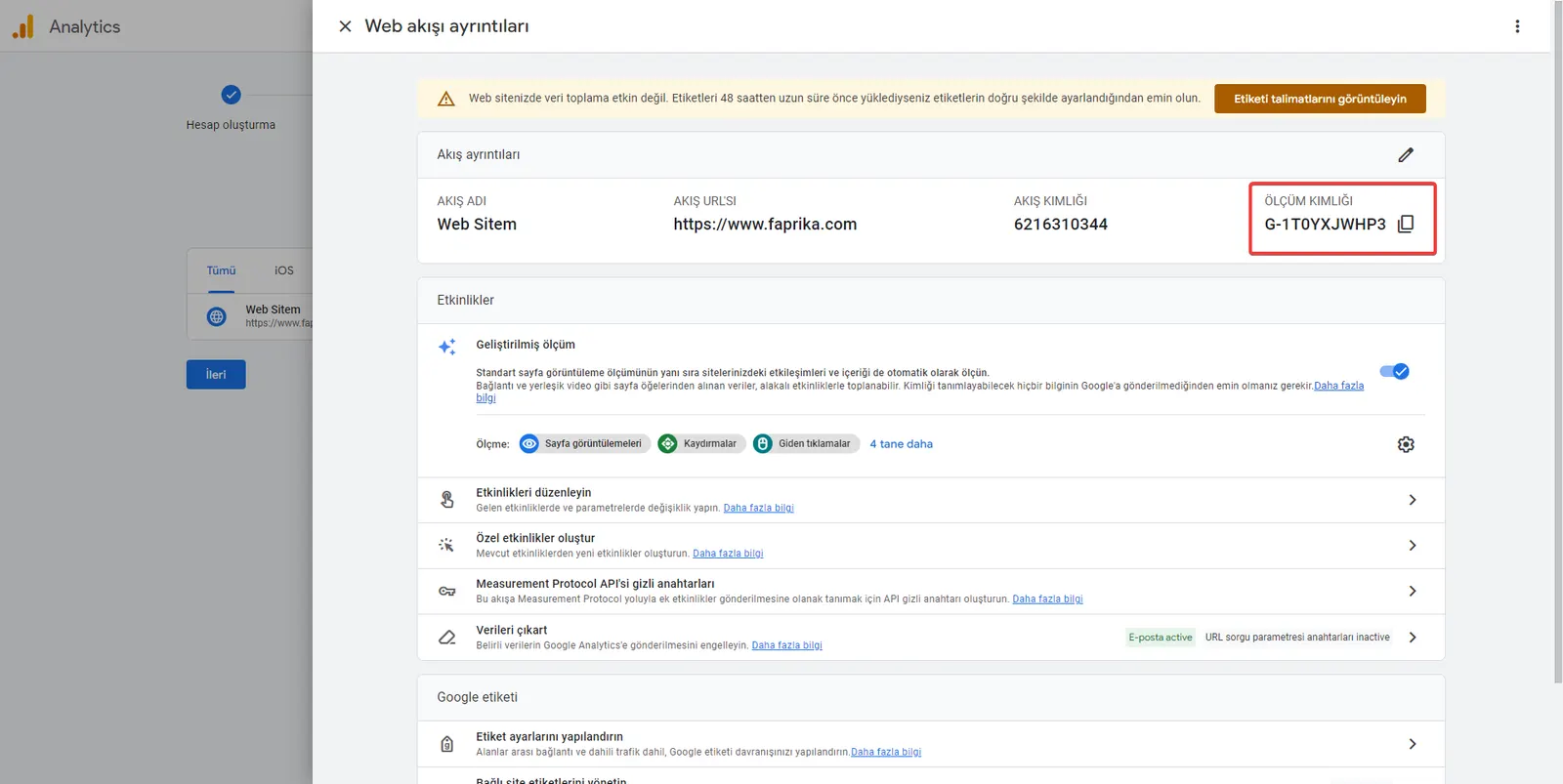
On the Web Stream Details screen, pay attention to the 'MEASUREMENT ID' section. This ID is a special code that will be used to track your site. Copy this ID by clicking the 'Copy' button next to it.
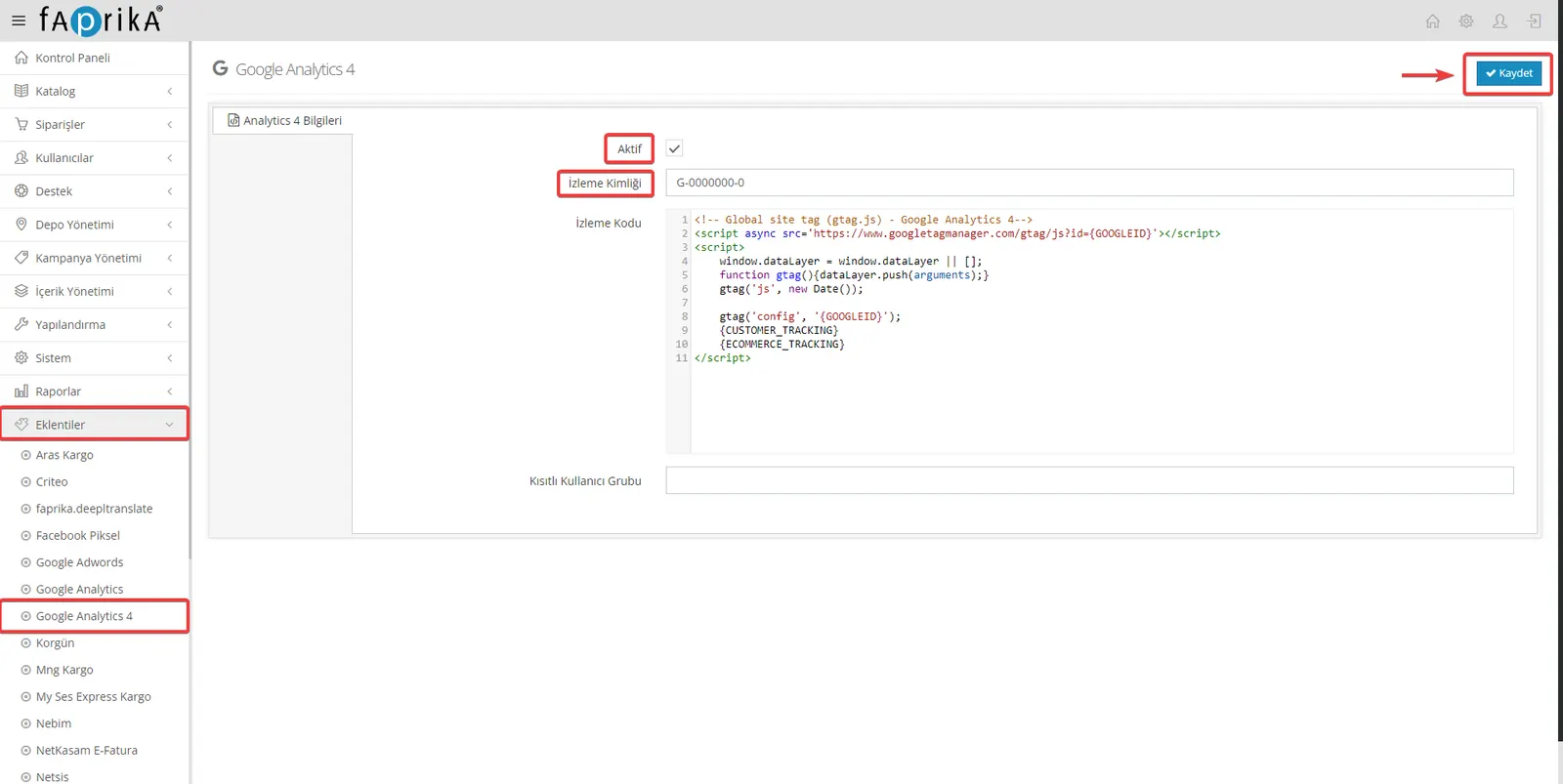
Log in to your website's control panel and click the 'Google Analytics 4' option in the Add-ons menu. There will be a 'Tracking ID' section here. Paste the 'Google Analytics Measurement ID' you copied earlier into this field. Tick the 'Active' box and confirm all your settings with the 'Save' button.
With this training series, you have completed the Google Analytics 4 (GA4) setup on your Faprika E-Commerce infrastructure step by step. You can now easily start measuring your website's performance, visitor interactions and much more data through Google Analytics 4 (GA4). Now is the perfect time to use your valuable data to increase your business's online success.